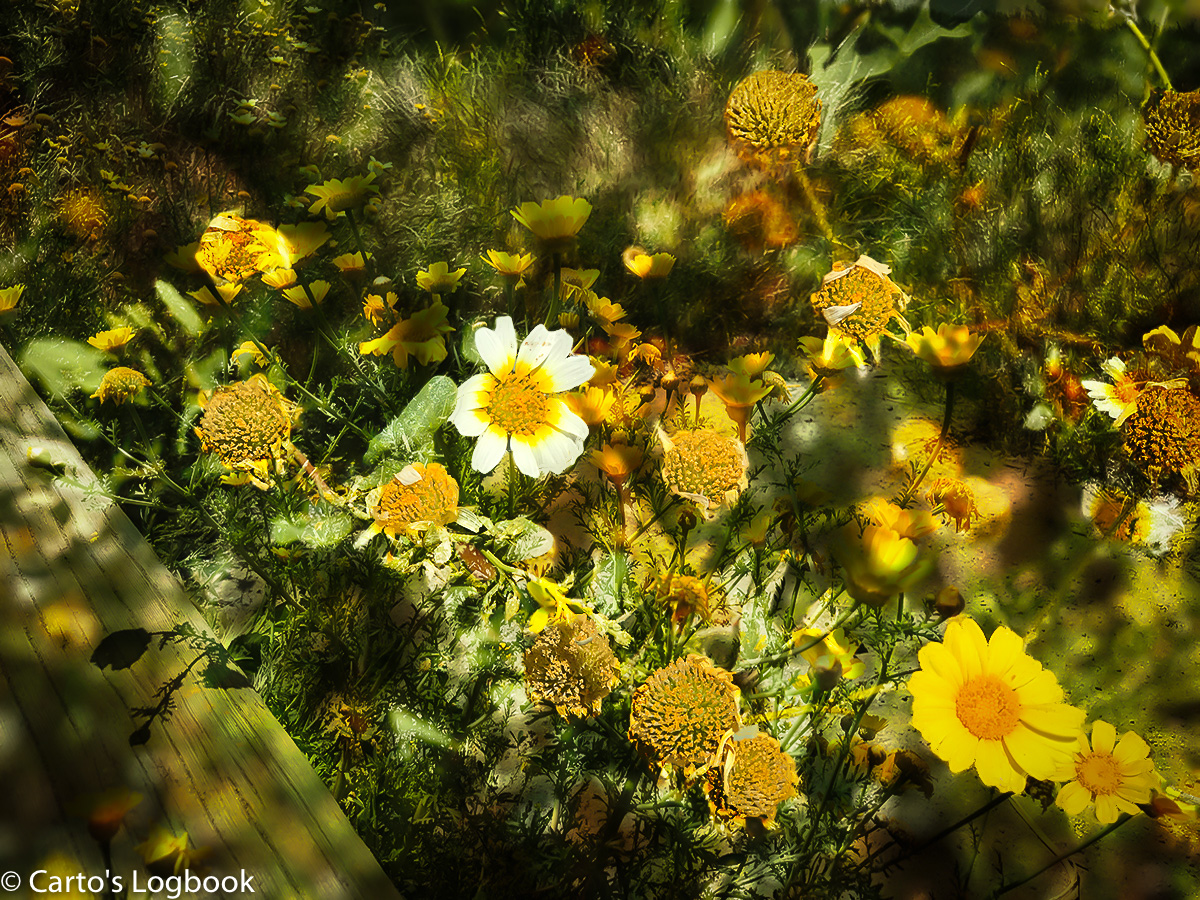
Season’s End — Flowers & Seed Pods, Baylands, 2017

COx-GoingToSeed-IMG_3894_3890-comp
Flowers and Seed Pods with Bench, Composite, Baylands, 2017

We’re having our first heat wave, the grass is turning golden, and the Spring flowers are going to seed. This photo above is a composite image that began life in my iPhone7plus as a close-up of flowers and seed pods. The second shot was an “atmosphere” shot of a bench, yellow flowers and dry grass.  I thought to combine the photos into a more complex image that meant to me “going to seed—the end of Spring.”

The composite image was created with Lr Mobil, Lightroom CC and Photoshop CC. The images were loading into Lr Mobil on the iPhone, which uploaded them to the Creative Cloud and synchronized them with the  Lr catalog on my MacBook Pro.

The images put into a collection, and opened as layers in Photoshop CC: The close up of flowers and seed pods  was the background and the image of the bench was Layer 1. The blending mod of Layer 1 was set to Overlay.

In Photoshop CC, the flowers and seed pods of the background were selected and a new layer created with the selection as mask. The new layer was moved to the top of the layer stack and the blend mode set to overlay.

The composite image was toned, and the layers merged. The merged layer was duplicated, and the Find Edges filter applied. The blending mode on the new layer was set to the Overlay mode.

The result of this exercise was the image at the top of this post. Click on any image to get a higher resolution view.

Cheers, Carto
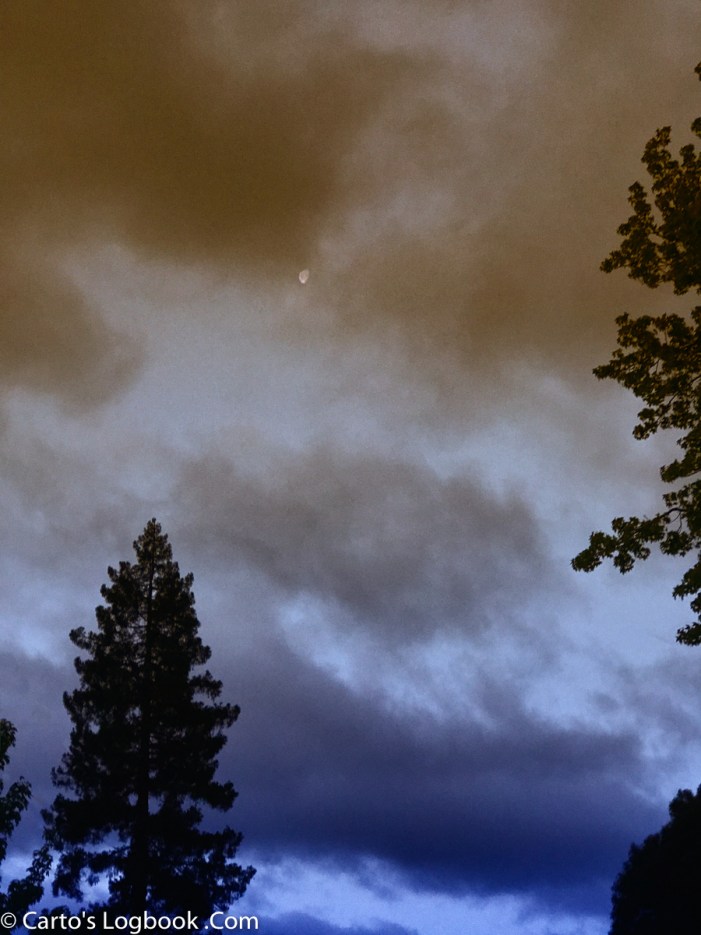
AM Moon — A Color Interpretation

COx-Moon2-IMG_3883
Moon in Sunrise Fog, Palo Alto, 2017

Presented above is a second edit of “Moon in Clouds, Early Morning”.   

The original photo that was imported into Lr Mobile, was in the synchronized folder on my MacBook Pro. Today, I processed a color version, converting the original color photo to a bi-color version using Color Efex Pro 4. I also used the LR Develop module to quickly remove some power lines, and then exported the file to the Mac desktop after adding my logo and resizing to 1,200px.

I re-imported the desktop photo into LR and added it to my Lr Mobil synchronized collection, which downloaded automatically to my iPhone. As an aside, I edited the synchronized LrMobile photo, replacing  the original in the Lr Mobil catalog. You might not want that result.

After this test, I had a camera roll with the original photo taken by the camera, and, in my Lr Mobil Catalog are two photos: COx-Moon2-IMG_3883.jpb (807kb with logo) and IMG_3883.jpg (edited 1.3mb w/o logo).

Somewhat convoluted workflow, but it seems to work. The Adobe engineers deserve a lot of credit for making this possible. I’m getting to like this product.

Cheers, Carto

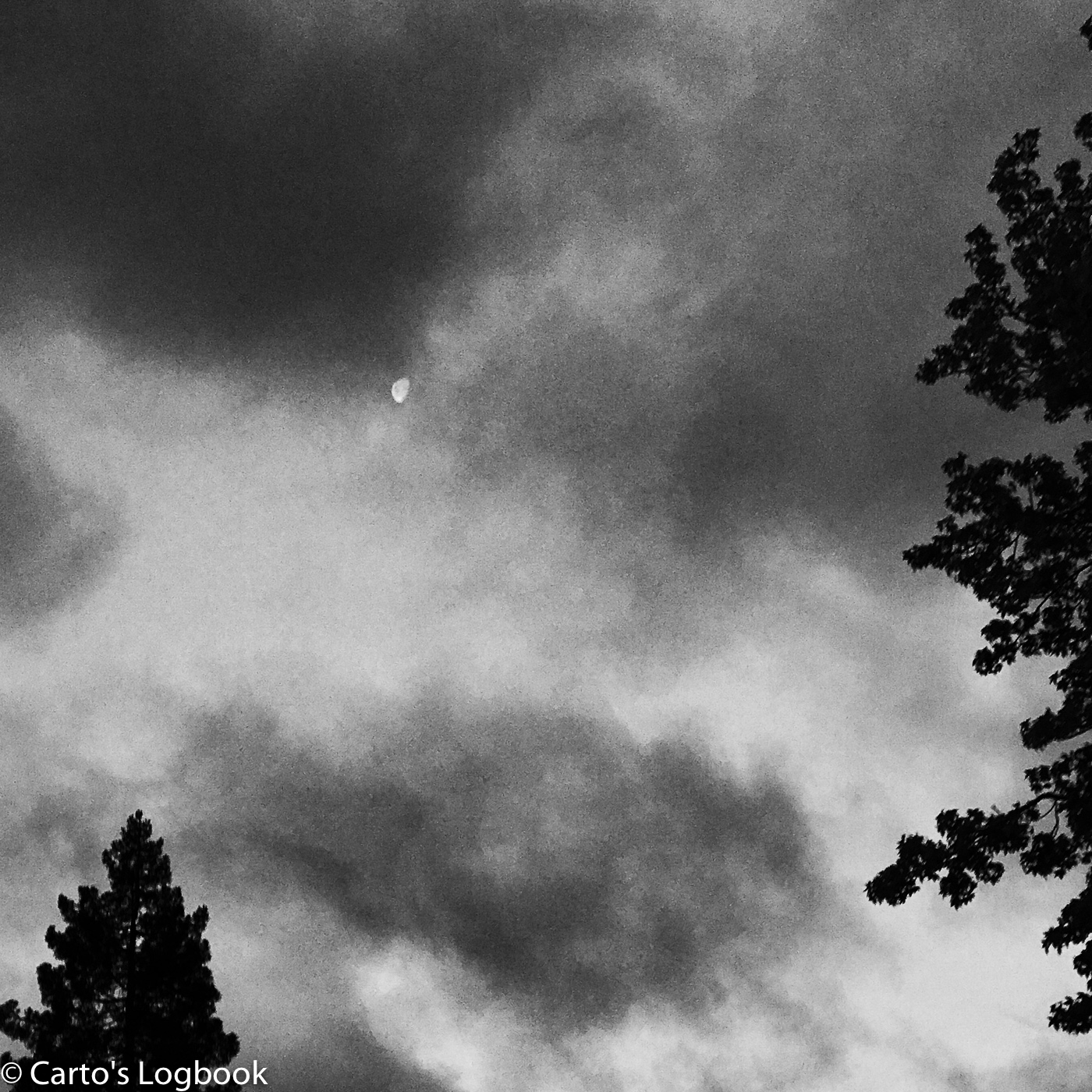
Moon in Clouds, Early Morning

MoonInClouds-20170516-20170516-IMG_3883
Moon in Clouds, IPhone 7+ portrait lens, early am, Palo Alto, 2017

Early morning in Palo Alto with moon visible. Photo taken with my iPhone 7+ and processed in Lr Mobil, LR CC, SilverEfx Pro 4, and PS CC. Just playing around.

The same photo was processed on the iPhone and shared to Instagram with this workflow:

Open Lr Mobile and select photo from Camera Roll.
Upload (Ps Fix at Max Size) – Square crop & Tone.
Upload (Copy to Instagram) – Next/Next (to skip editing),
Write a Caption & Share

The whole effort on Instagram took less than 15 minutes.

Carto